LLM Agent
Beta Feature: This feature is currently in beta. We welcome feedback and bug reports via GitHub Issues.
Connect any LLM coding agent to Xplorer and let it control a browser, explore web applications, validate UI, and automate interactions. Xplorer provides the API server — your LLM of choice drives the workflow.
Supported LLM clients: Claude Code, GitHub Copilot (VS Code & CLI), OpenAI Codex CLI, Cursor, and any tool that supports curl or MCP.
Prerequisites
This feature requires an active Xplorer subscription. Go to Help > License to sign in. See Licensing & Sign-In for details.
Quick Start
1. Start the API Server
Click Agent in the left navigation bar. The LLM Agent view opens automatically.
Click Start Server to launch the API server on port 5757.
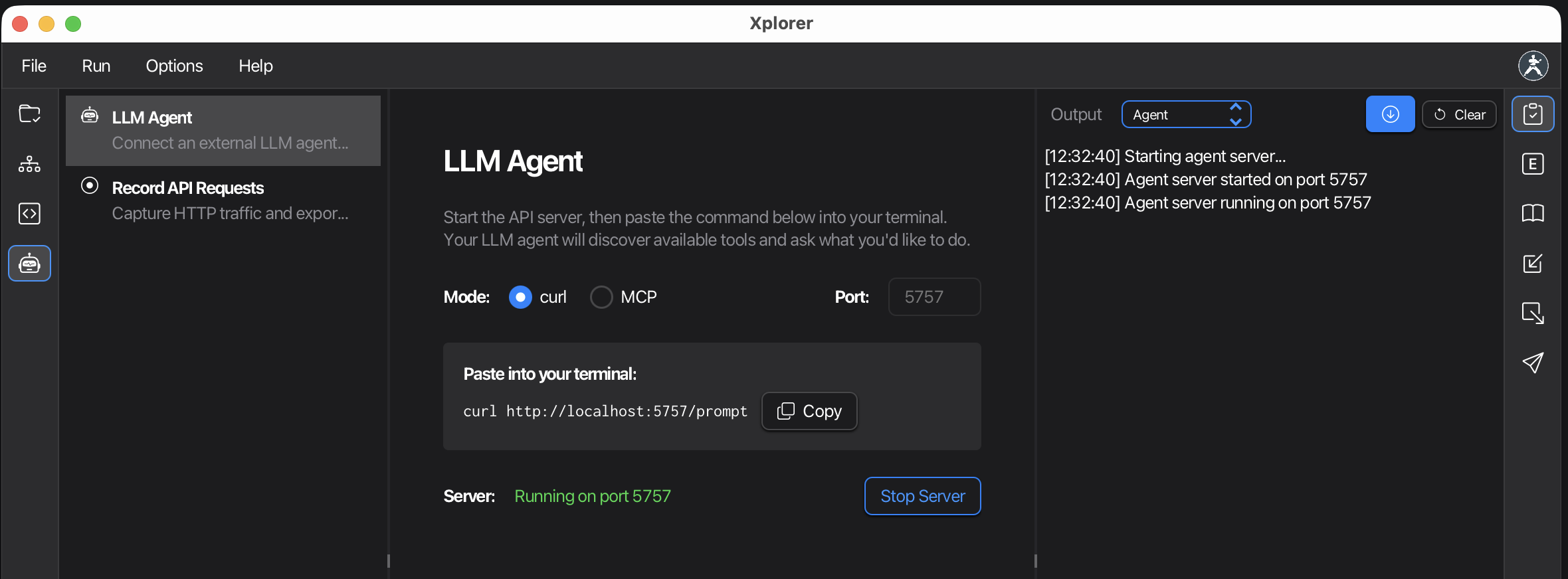
2. Connect Your LLM
Choose curl (default) or MCP mode and click Copy to get the command.
curl Mode (Recommended)
Paste this into your LLM agent's terminal:
curl http://localhost:5757/prompt
The LLM fetches the complete API reference and instructions from the server, then asks what you'd like to do. No manual configuration needed — the LLM discovers everything automatically.
MCP Mode
For LLM clients that support MCP (Model Context Protocol), use the CLI command:
claude mcp add karate-eval --transport http http://localhost:5757/mcp
Or add to your project's config file:
{
  "servers": {
    "karate": {
      "type": "http",
      "url": "http://localhost:5757/mcp"
    }
  }
}
| Client | Config file |
|---|---|
| VS Code (Copilot) | .vscode/mcp.json |
| Claude Code | .claude/mcp.json |
| Cursor | .cursor/mcp.json |
Both curl and MCP are served simultaneously on the same port — you don't need to choose one or the other at the server level. The toggle only controls which command is shown.
3. Tell the LLM What to Do
Once connected, simply tell the LLM what you want in natural language:
- "Open https://httpbin.org/forms/post, fill the form with test data, and submit it"
- "Navigate to our app at localhost:3000 and verify the login flow works"
- "Explore the site and report any broken links or error messages"
The LLM handles all the browser automation using the Agent JS API.
How It Works
The API server on localhost:5757 exposes these endpoints:
| Endpoint | Description |
|---|---|
GET /prompt | Returns complete API reference and instructions for the LLM |
POST / | Executes JavaScript commands in the browser engine |
POST /mcp | MCP endpoint (JSON-RPC 2.0, Streamable HTTP transport) |
GET / | Server health check and active agent status |
The LLM writes JavaScript using the Agent API:
var agent = Agent.create()           // Launch browser
agent.go('https://example.com')      // Navigate
agent.look()                         // See page state
agent.act({on: '#login', action: 'click'})  // Interact
Custom Port
The port field is editable — change it from the default 5757 if needed. All copyable commands update automatically when you change the port.
Command Log
The Output pane displays real-time traffic between the LLM and the server:
>>Commands sent by the LLM<<Responses from the server
Status Bar
The status bar shows a green indicator with the port number when the server is running. Click it to copy the MCP URL to your clipboard.
Security
- Server binds to
127.0.0.1only — not accessible from other machines - No authentication required (trusted local environment)
- File operations are sandboxed to the working directory
Next Steps
- Recording API Requests — Capture API traffic from browser interactions
- Licensing & Sign-In — Manage your subscription