Running Requests & Collections
Learn how to execute requests, folders, and entire collections with enhanced feedback.
Running Individual Requests
Two ways to run:
- Click the Run button in the request panel
- Click the status icon in the navigation tree (when request is selected)
What happens:
- Request executes with current settings
- Response appears in the response viewer
- Pass/fail indicator updates in navigation tree
- Test results appear in Output pane (right panel)
Running Folders
Select any folder in the navigation tree and click Run to execute all requests within that folder.
Execution order:
- Requests run in the order they appear in the tree
- Folder-level scripts (Before/After) apply to all requests
- Each request shows pass/fail status after execution
Running Entire Collections
Select the root collection and click Run to execute all requests in all folders.
Features:
- All requests execute sequentially
- Collection-level variables and scripts apply
- Root-level Before/After scripts run for each request
- See aggregated results in Output pane
Enhanced Feedback
Karate Xplorer provides superior execution feedback compared to Postman:
Navigation Tree Indicators
After execution, each request shows:
- Green checkmark — All tests passed
- Red X — One or more tests failed
Folders show aggregated status:
- Green if all contained requests passed
- Red if any contained request failed
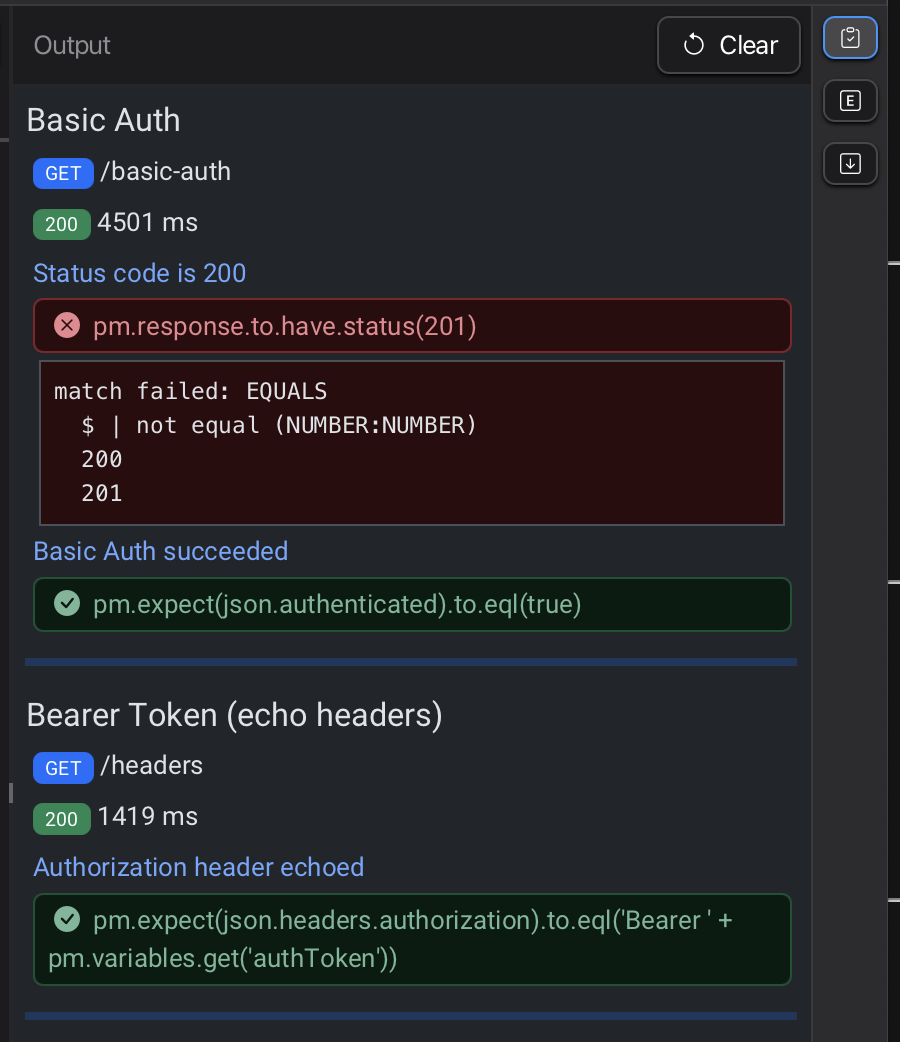
Output Pane
The Output pane (right panel) displays:
- Real-time HTML output as tests execute
- Detailed assertion results
- Pass/fail status for each test
- Error messages and stack traces
- Test timing information
The output persists and updates as you navigate between requests.
Response Persistence
Response data is saved for each request:
- Switch between requests to see their last response
- Response clears when you clear results
Stopping Execution
Click the Run button again while execution is in progress to stop:
- For individual requests: Button shows as active during execution
- For collections/folders: Execution stops and partial results remain
Before and After Scripts
Scripts execute at different levels:
Request Level
- Before: Runs before the request
- After: Runs after the request; tests go here
Folder Level
- Before: Runs before each request in folder
- After: Runs after each request in folder
Collection (Root) Level
- Before: Runs before each request in collection
- After: Runs after each request in collection
Execution order:
- Collection Before
- Folder Before (if applicable)
- Request Before
- HTTP Request
- Request After
- Folder After (if applicable)
- Collection After
Clearing Results
Remove execution results at any level:
Request level:
- Right-click request → Clear
Folder level:
- Right-click folder → Clear
- Clears all requests within folder
Root level:
- Right-click collection root → Clear All
- Clears entire collection
Status indicators and Output pane content clear accordingly.
Keyboard Shortcuts
- Run selected item: Click Run button or status icon
- Stop execution: Click Run button while executing