ENTERPRISE
IntelliJ IDEA
The Karate Labs IntelliJ plugin provides a complete development environment for Karate tests — syntax highlighting, run-from-editor, debugging, and OpenAPI integration. Works fully-featured on both IntelliJ Community Edition and Ultimate.
Quick Links
- 📺 Video Tutorial — Complete walkthrough of plugin features
- 💲 Pricing — License tiers and pricing
- ⚡ Marketplace — Install from JetBrains Marketplace
- 🐙 Issues — Report bugs and feature requests
Plugin Features by License
PLUS
core features
- ✓Syntax coloring
- ✓Run Feature from editor
- ✓Run single Scenario / Example
- ✓Run Configurations
- ✓Structure view
- ✓Code formatting
- ✓In-IDE test results
PRO
This plugin works fully-featured on IntelliJ Community Edition. JavaScript support is built-in and does not require IntelliJ IDEA Ultimate.
By using this plugin, you agree to the Karate Labs EULA. The plugin and the Karate open-source library both ship with zero telemetry — no usage data, analytics, or device information is collected or transmitted. See our Privacy Policy for details.
Installation
Install the plugin from the JetBrains Marketplace, or search for Karate in Settings → Plugins.
Requirements
- IntelliJ IDEA Community Edition or Ultimate
- Java 17+ (for Karate 1.5.0+) or Java 11+ (for Karate 1.4.x)
- No additional plugins required — JavaScript support is built-in
License Activation
License activation and status is unified within the IntelliJ settings UI. Go to Settings → Languages & Frameworks → Karate.
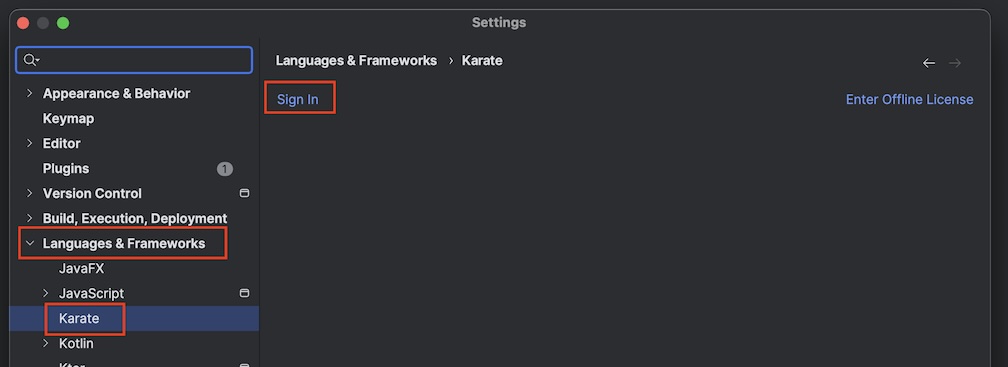
- Click the Sign In link — your browser opens the usual flow tied to your subscription.
- Copy the session ID from the browser and paste it into the input box in the IntelliJ settings view.
- Click Apply to complete sign-in.
Once authenticated you can work offline. The settings page shows how many days remain in your session.
If you need an offline license because of strict security or similar restrictions, please contact us. Offline licensing is available only for enterprise customers.
Session Renewal
Once signed-in, you can renew or extend the session in one click without re-authenticating in a browser.
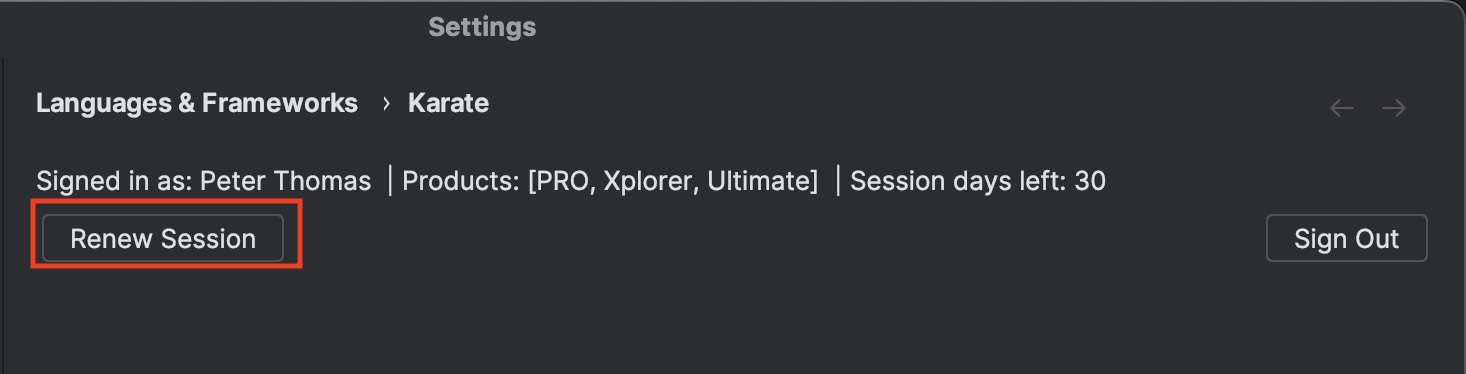
If you have a valid subscription, Renew Session works even if your session has expired.
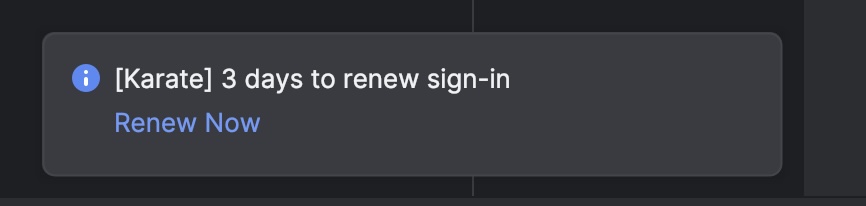
A notification appears when 10 or fewer days remain in your session. Clicking Renew Now takes you directly to the Karate settings screen for a one-click renewal.
Offline License
Offline licensing is a paid feature for enterprises. Make sure you know who your designated admin is before performing this step.
On the License Activation settings page, click the Offline License link.
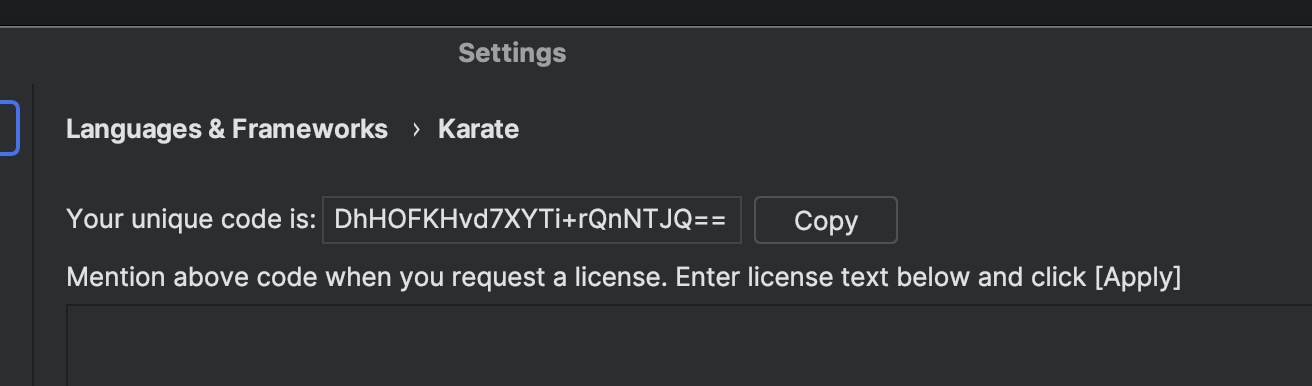
A unique code for your system will be shown (for example, DhHOFKHvd7XYTi+rQnNTJQ==). Send that code to your designated admin. You will be issued a license tied to this unique code.
To apply the license, copy the entire license file (starting with -----BEGIN LICENSE FILE-----) and paste it into the text area provided.
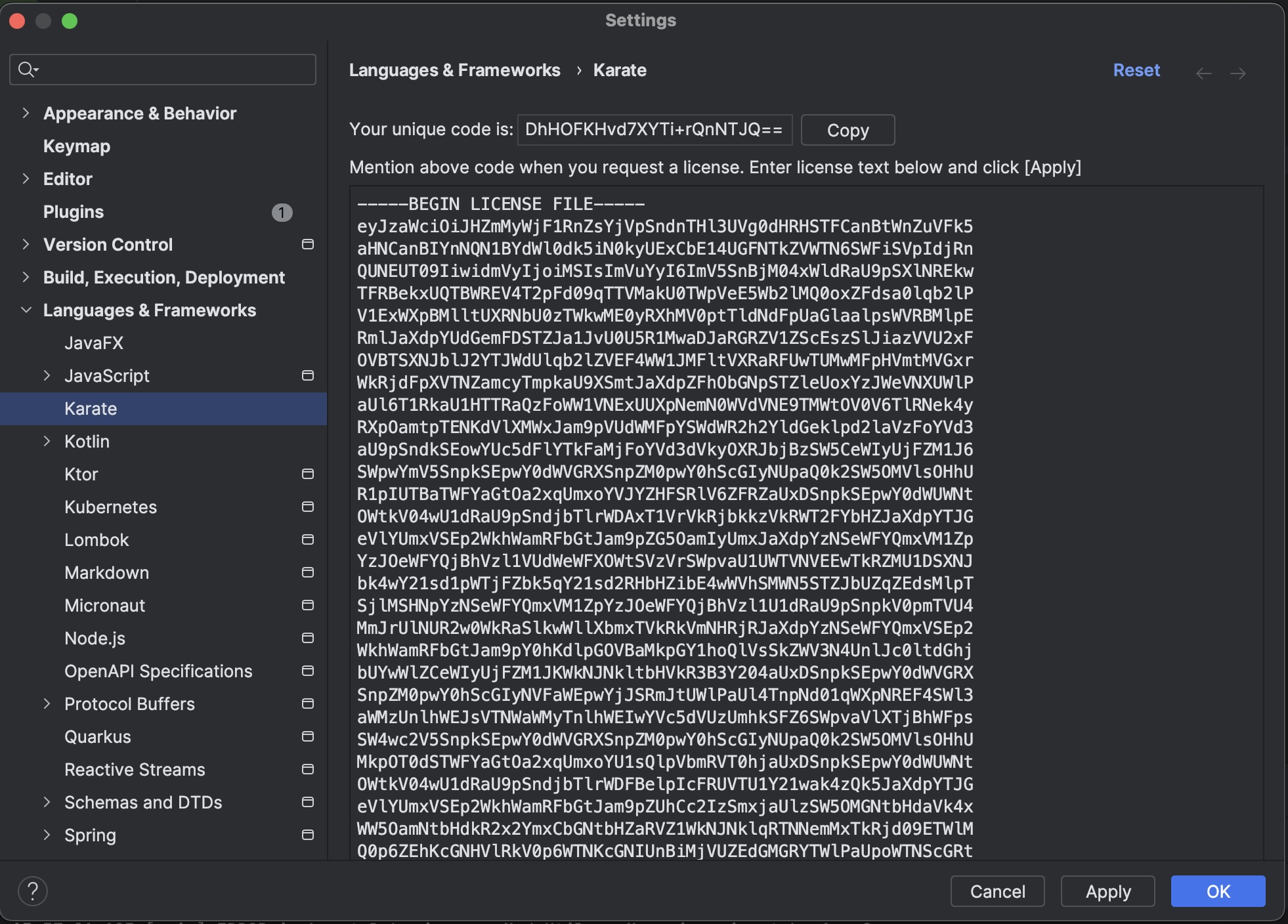
Click Apply — you should see a confirmation message and your license details.
Core Features
Run From Editor
Right-click a .feature file in the project explorer or editor and run it. An IntelliJ run configuration is created automatically — you can customize it later if needed.
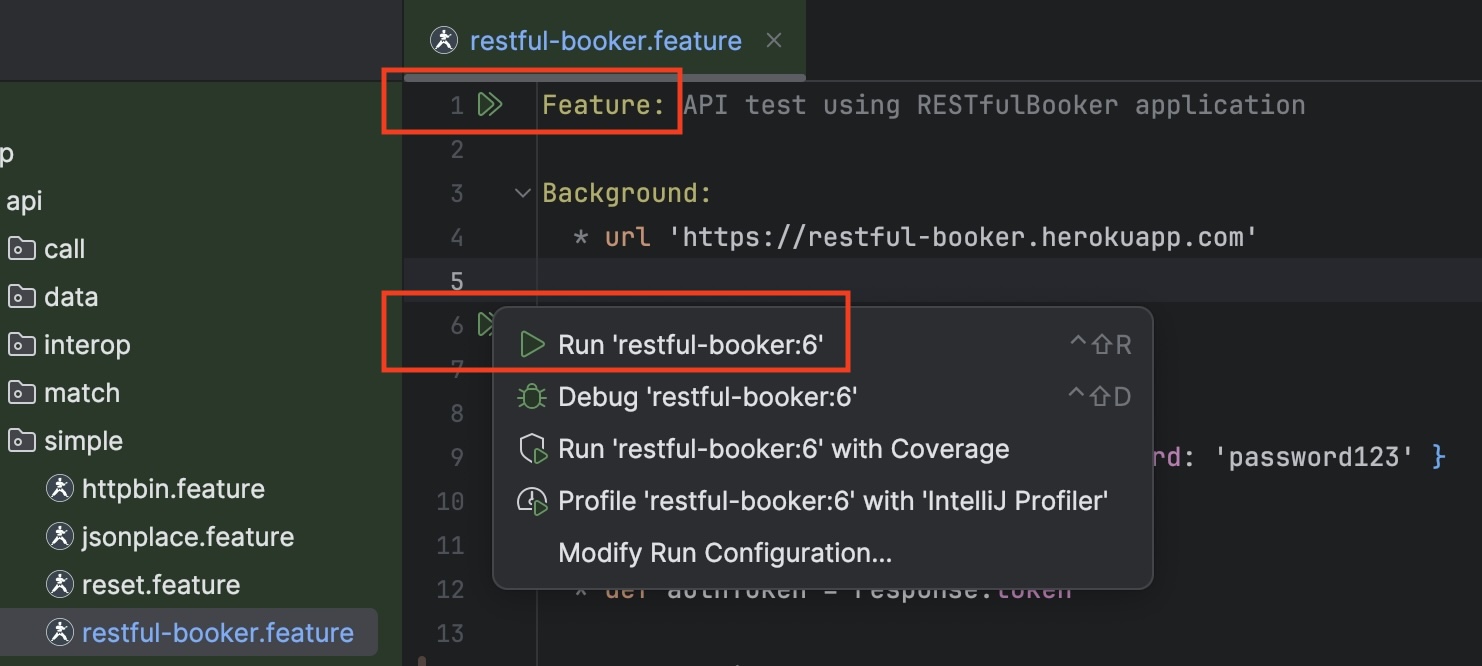
You can also run a single Scenario by right-clicking on it, or by using the gutter icon. Right-clicking the gutter icon brings up the option to Debug instead of Run.
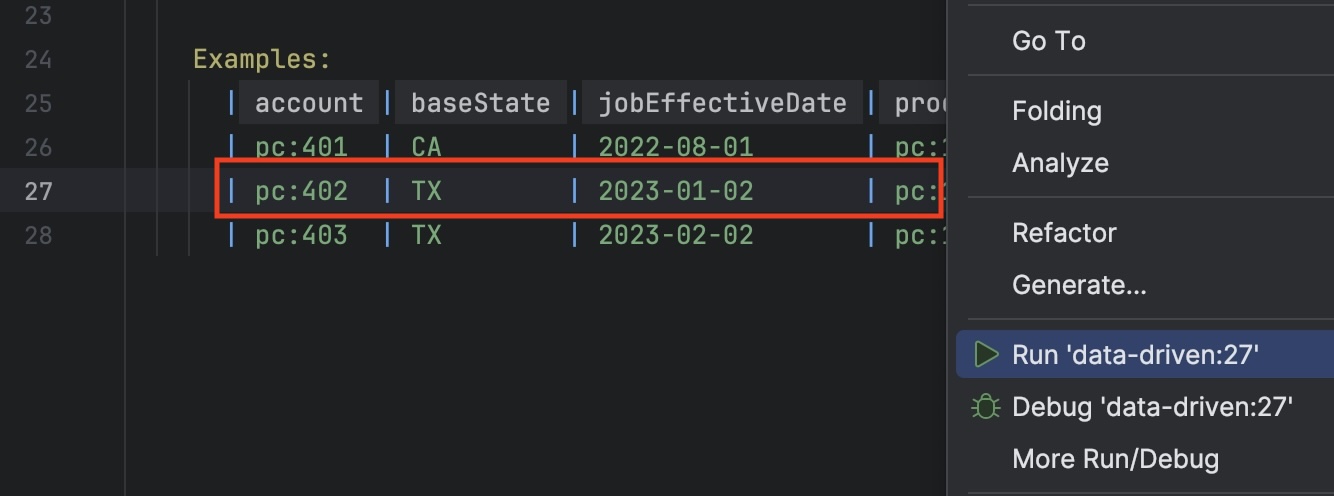
You can even run a single example in a Scenario Outline by right-clicking a data row within an Examples table.
Run Configurations
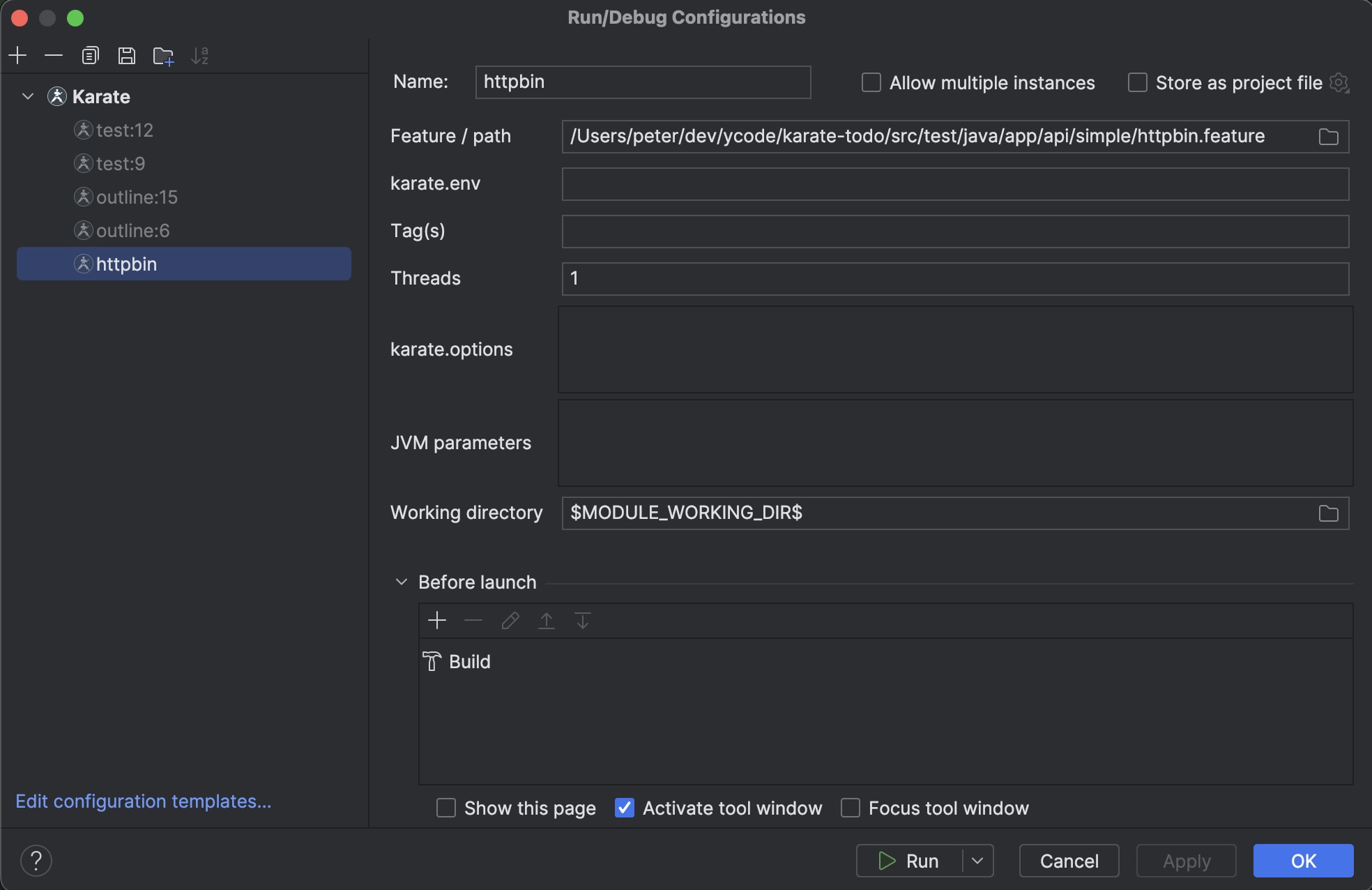
IntelliJ run configurations let you re-run tests with specific parameters. All typical Karate options are supported, including environment selection, tag filtering, parallel execution, JVM parameters, and working directory.
Structure View
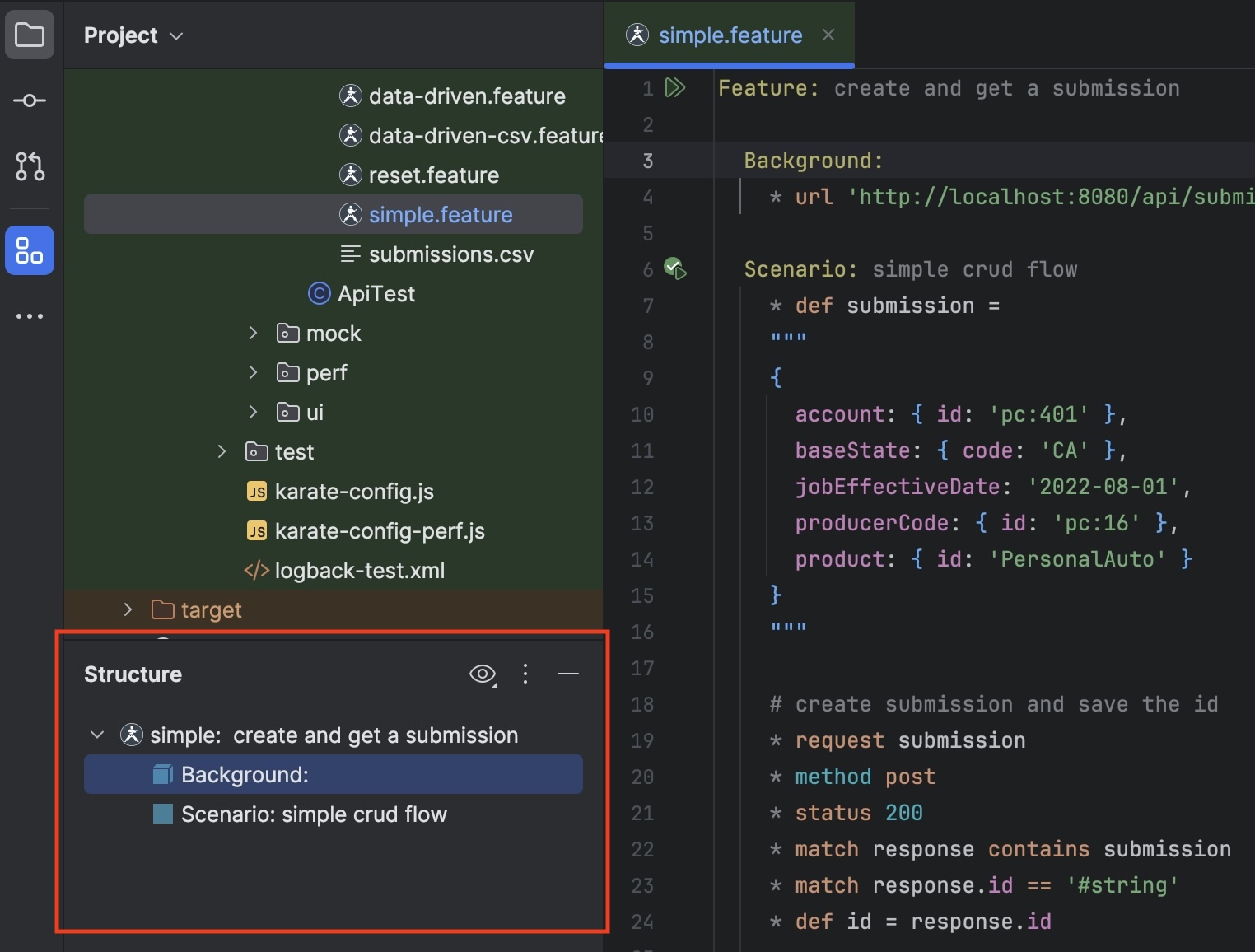
The IntelliJ structure view lets you navigate large feature files — jump directly to scenarios and examples.
Code Formatting
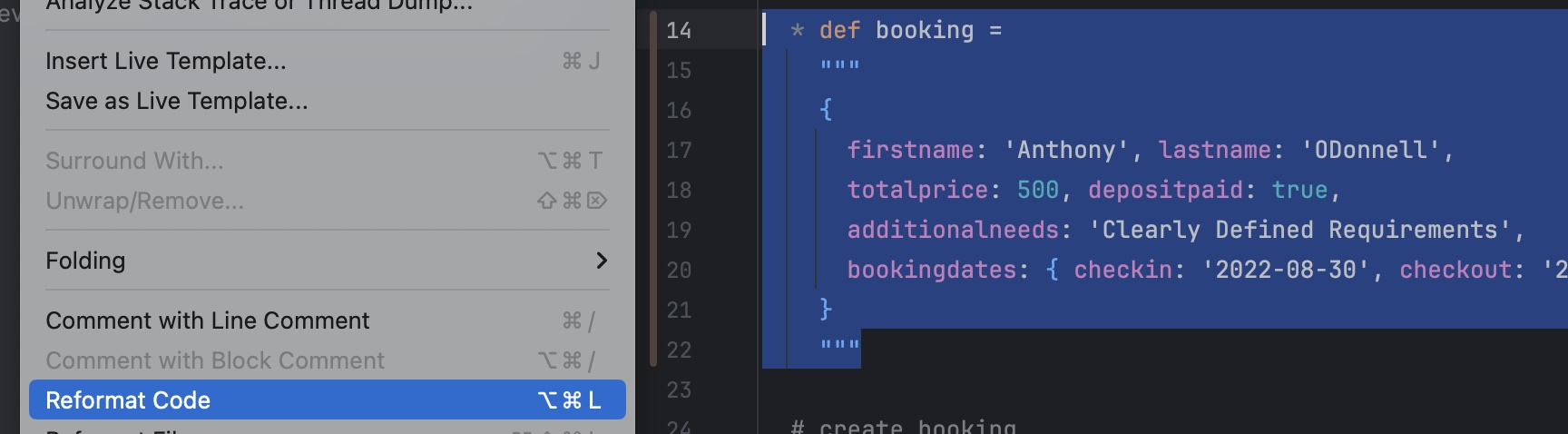
IntelliJ code formatting shortcuts work as expected — even JSON within doc-string blocks is formatted correctly.
Test Results
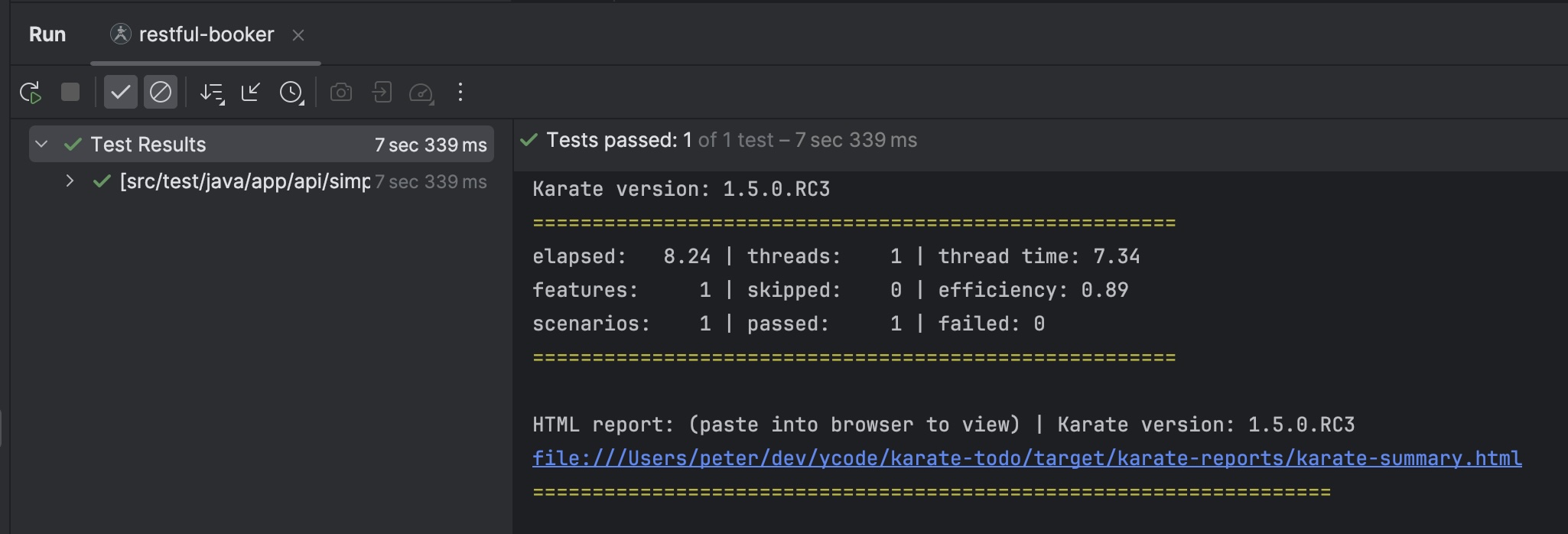
Test results integrate into the IntelliJ test-results view. The HTML report is one click away.
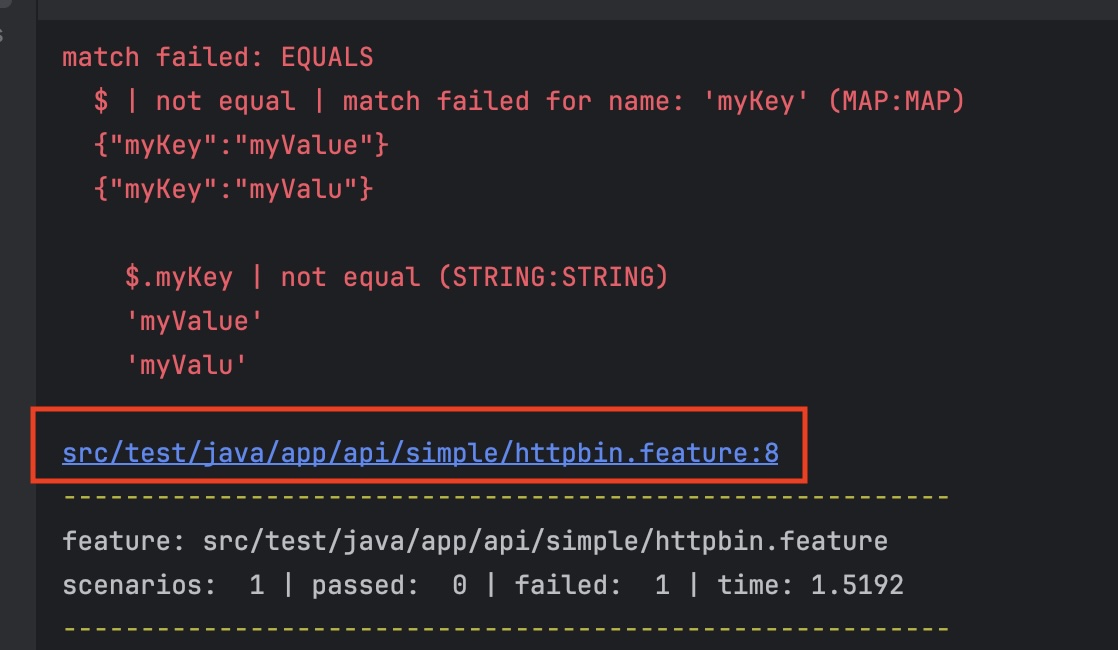
When tests fail, you can navigate directly to the feature file and line that failed by clicking the hyperlinks in the log.
Advanced Features (PRO)
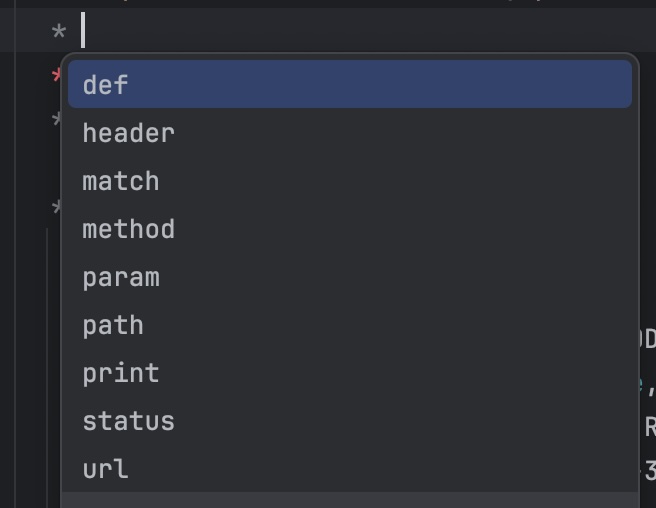
Auto Complete
Beyond syntax validation, you get auto-complete for the most commonly used keywords.
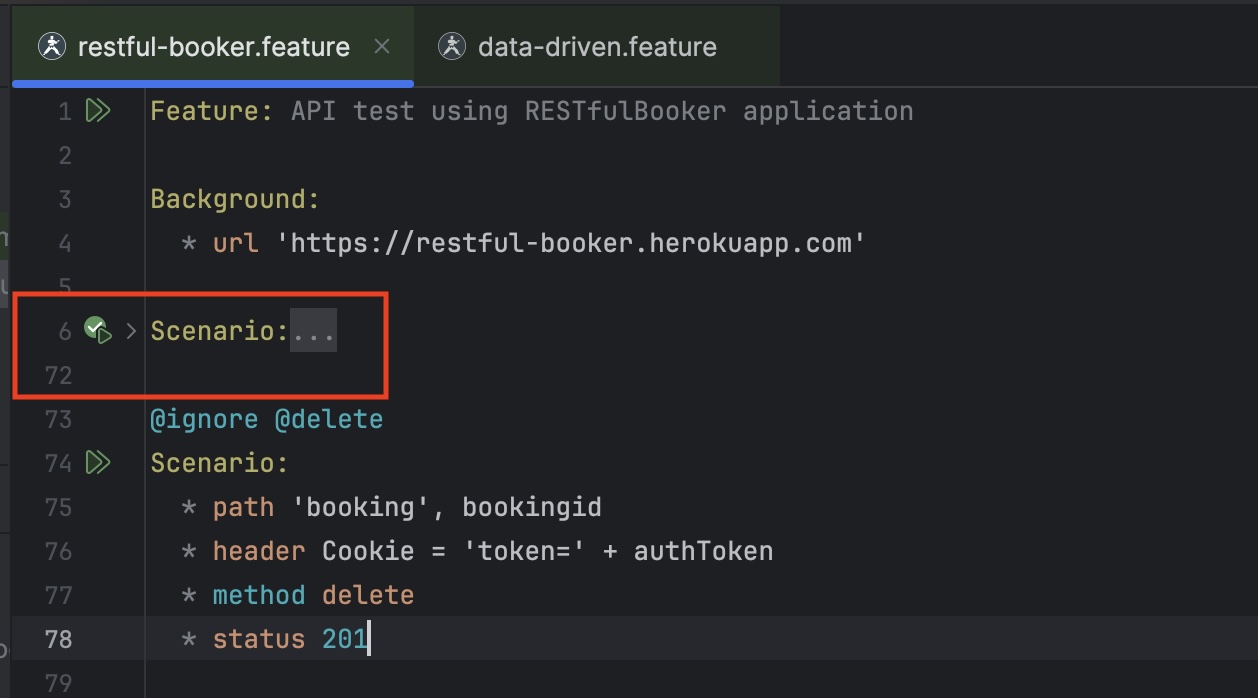
Code Folding
Collapse sections to make it easier to work with long tests.
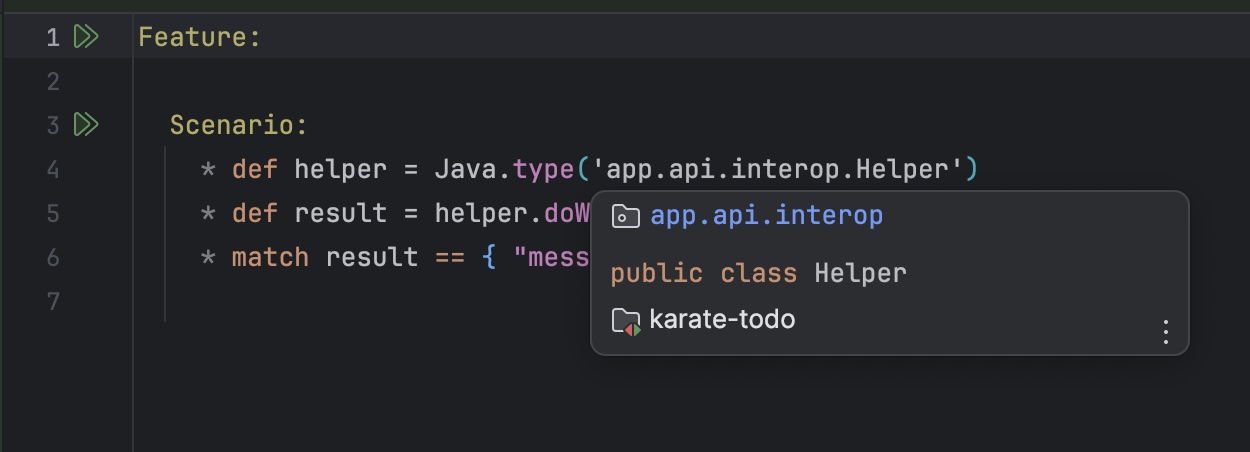
References
Click to navigate to called files. Hover to see context. Currently supported for the read() and Java.type() syntax — more coming soon, including auto-complete for references.
JSON Re-formatting
Place the cursor inside JSON to see a "bulb" icon with re-format options.
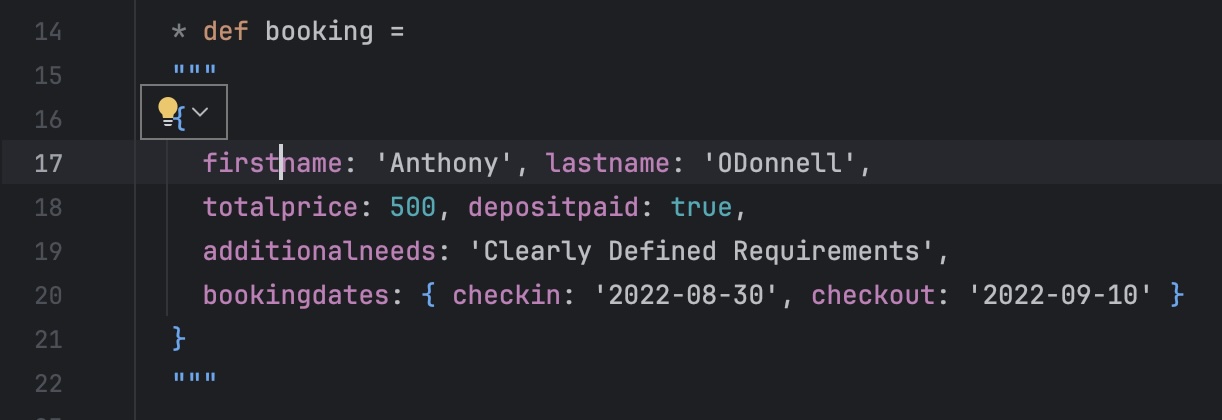
The options depend on context:
- Lenient — JS-style, single quotes and unquoted property keys
- Strict — Standard JSON with double quotes
- Make single line — Convert multi-line JSON to a single line
- Make multi-line — Convert single-line JSON to multi-line, including triple-quotes
Run Folder
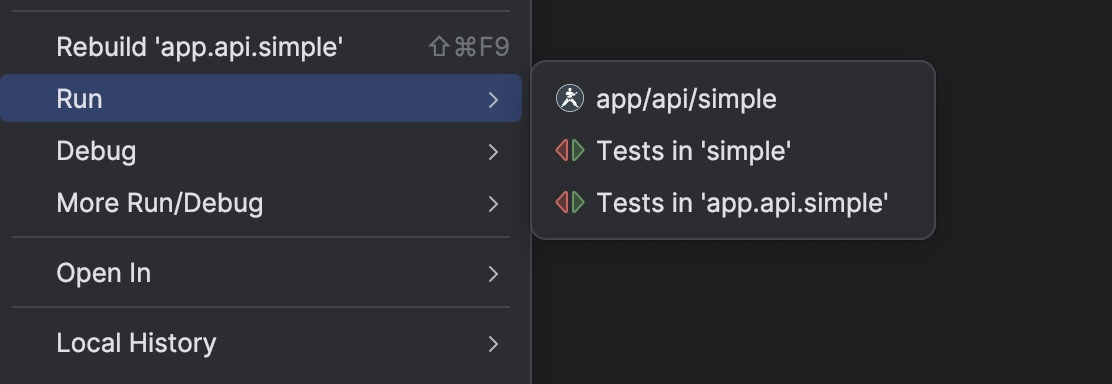
Right-click any folder in the project explorer to run all feature files within it.
Debug
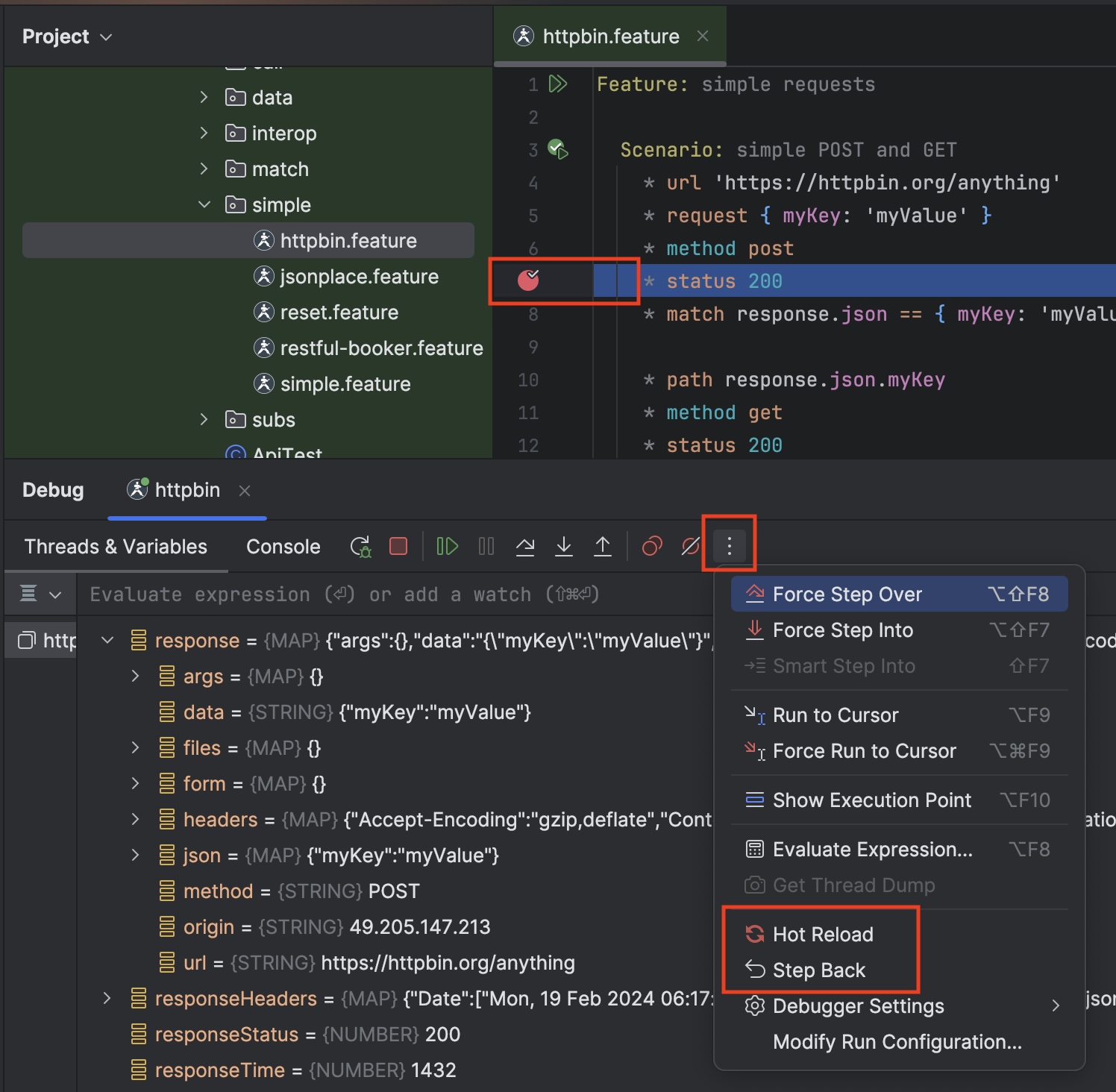
You can set breakpoints in feature files in debug mode. The Karate debugger can step back and hot-reload simple edits to your test. Note that Hot Reload and Step Back may be hidden in some IntelliJ UI variants.
Debug Java from Karate
A Karate debug session will stop at Java breakpoints.
Debug Karate from Java
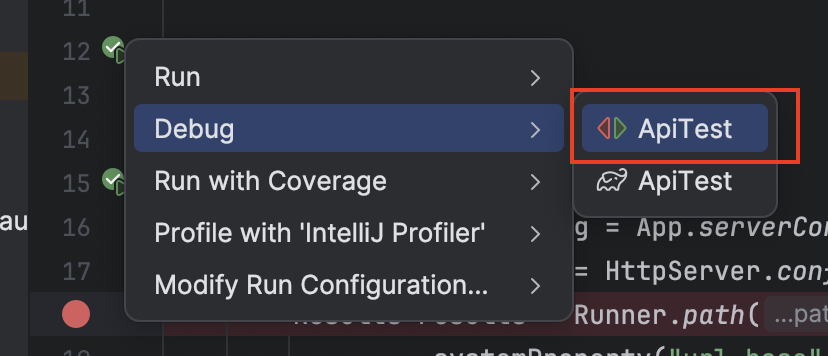
You can also start a normal Java debug session that uses the Karate Runner Java API and have it stop at Karate breakpoints. This requires Karate 1.5.0 or greater.
- Use the Karate
RunnerJava API as in this example - Use an IntelliJ Java or JUnit run configuration in Debug mode. Right-clicking a JUnit class (or method) or a Java class with a
mainmethod is normally how you create one.
Because the Runner API is pure Java, it does not get in the way of your flow or infrastructure. For example, your Java or JUnit code can start a server and then start your Karate test suite — the debug session will stop at both Java and Karate breakpoints.
Debug Gradle Projects
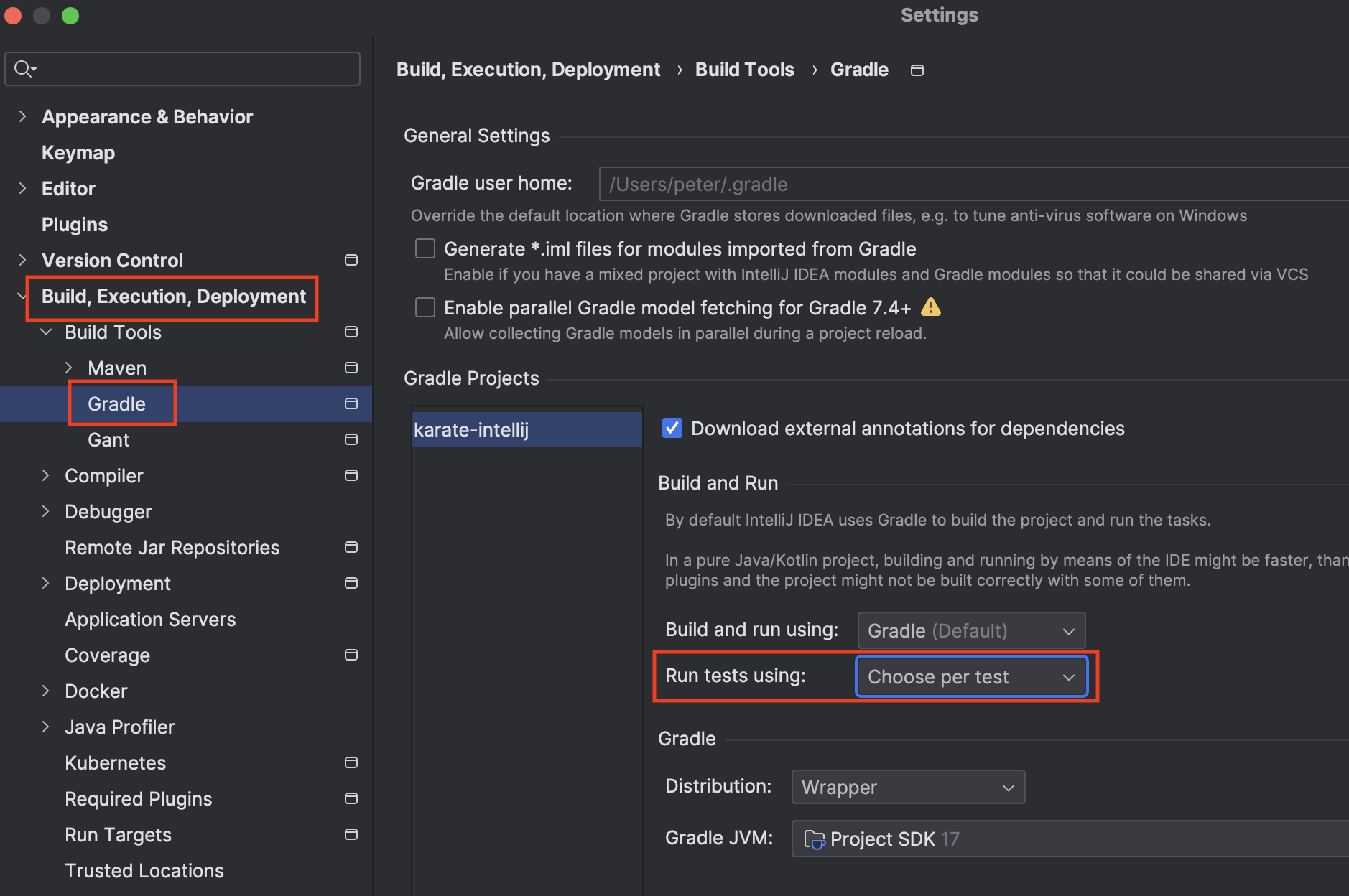
For Gradle projects, the run configuration IntelliJ creates may default to a Gradle-specific one rather than the native Java run configuration that honors breakpoints in Karate feature files. Change it via Settings → Build, Execution, Deployment → Build Tools → Gradle → Build and run — set Run tests using to Choose per test.
Now when right-clicking on a JUnit test or Java class, you can choose the Java run configuration instead of the Gradle one.
OpenAPI / Swagger Features (ENTERPRISE)
OpenAPI Import
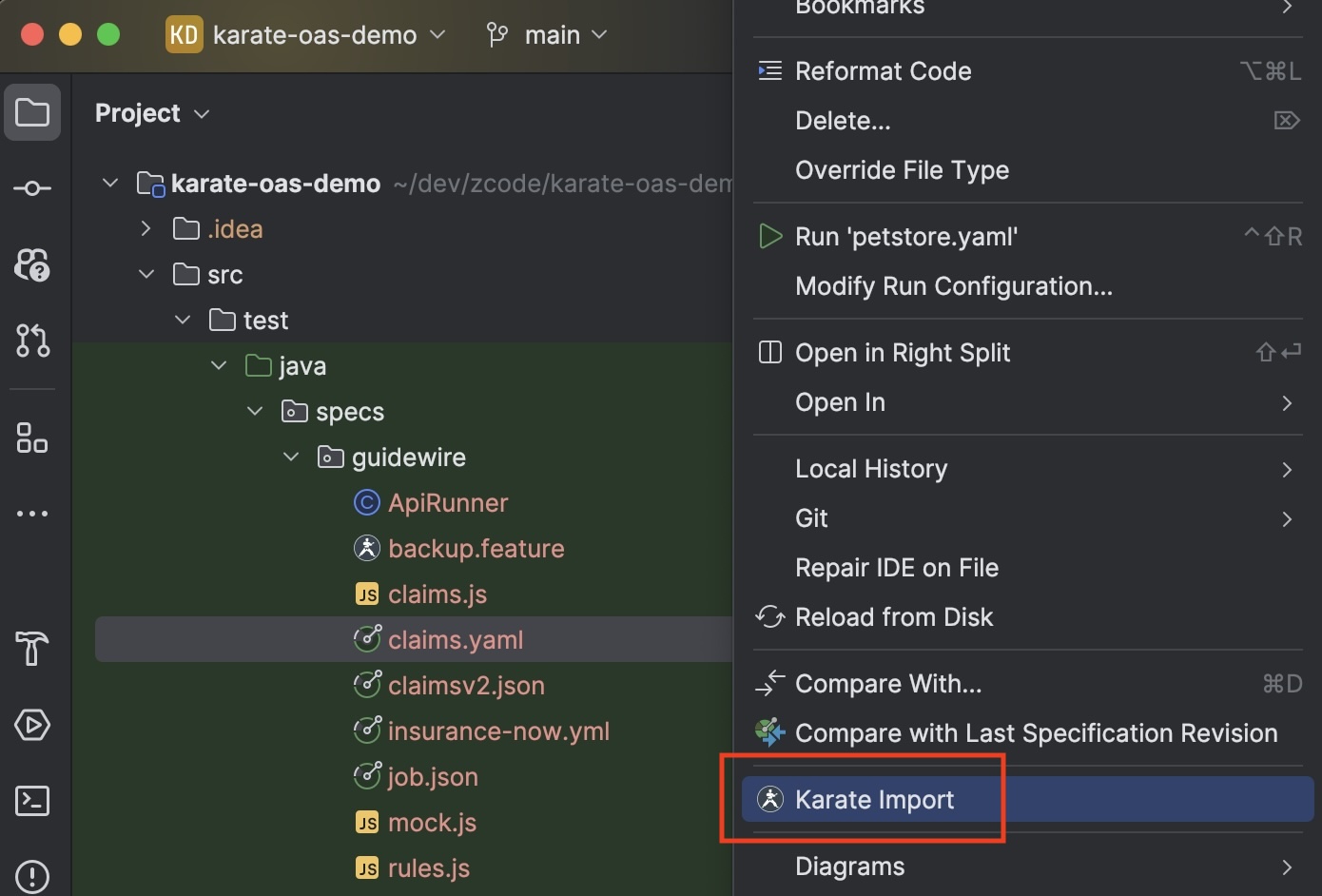
Right-clicking any file in the project explorer brings up a Karate Import menu. OpenAPI and Swagger files of any version are supported.
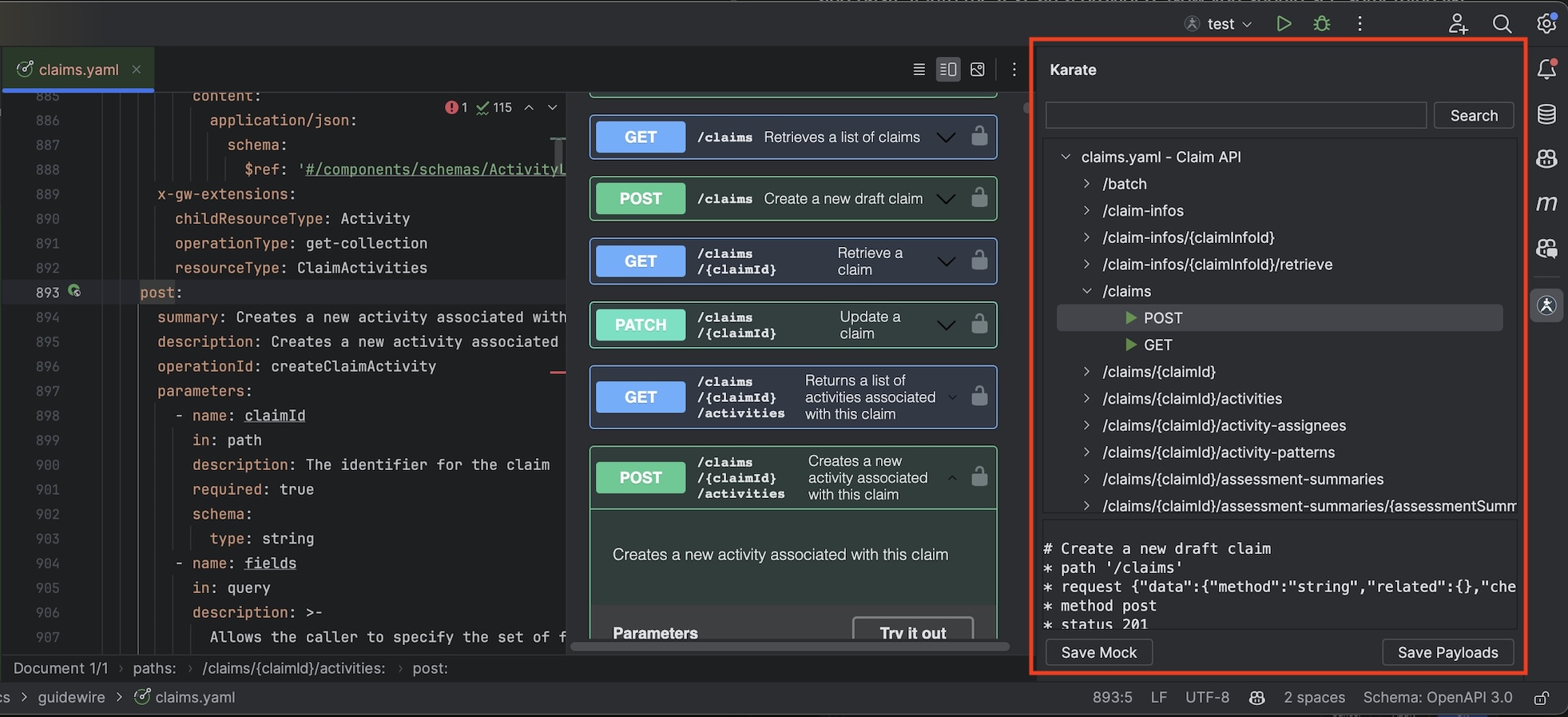
When successful, a Karate tool window appears (typically top-right). Expand it to see HTTP methods per API path (GET, POST, etc.). Click an HTTP method to preview the equivalent Karate snippet.
Create Tests From Spec
Creating a Karate test from an OpenAPI or Swagger file is fast — just click and drag from the tree into the editor window.

This gives you full control over the sequence of API calls in your test.
Spec Payload Chooser
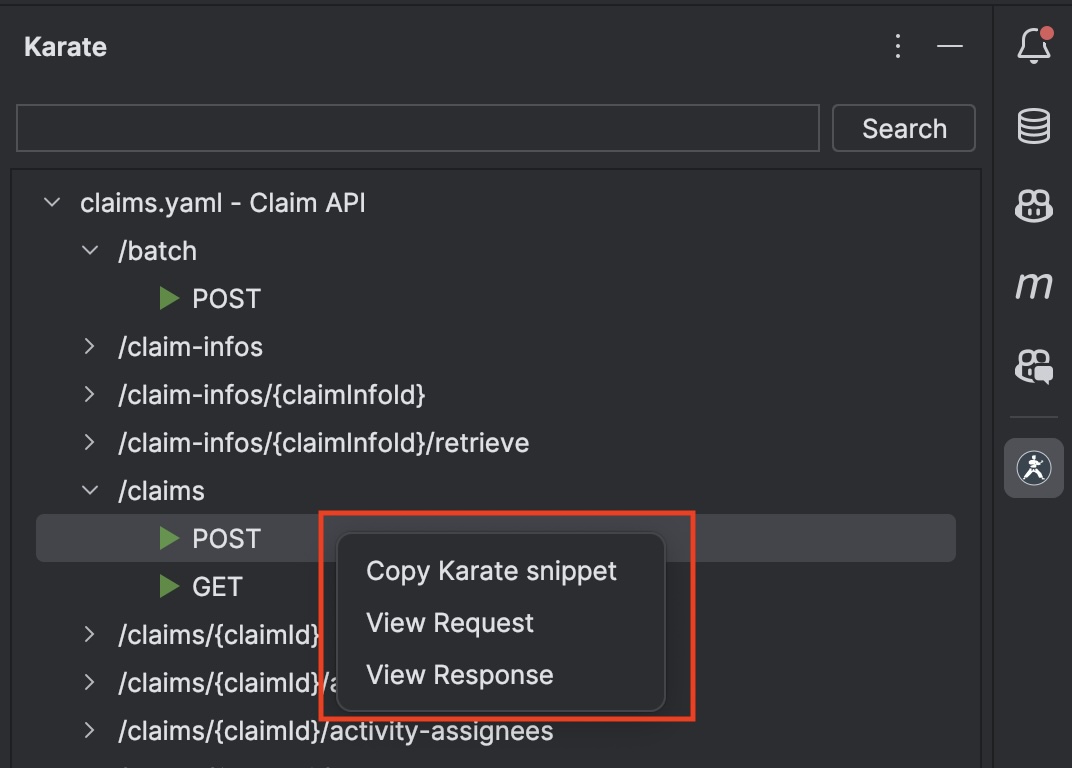
Complex APIs include schemas with all possible variations even though only some fields are commonly used. Right-click on an HTTP method in the tree to view the Request or Response when available.
A dialog appears where you can un-select JSON keys to choose payload sub-sets.
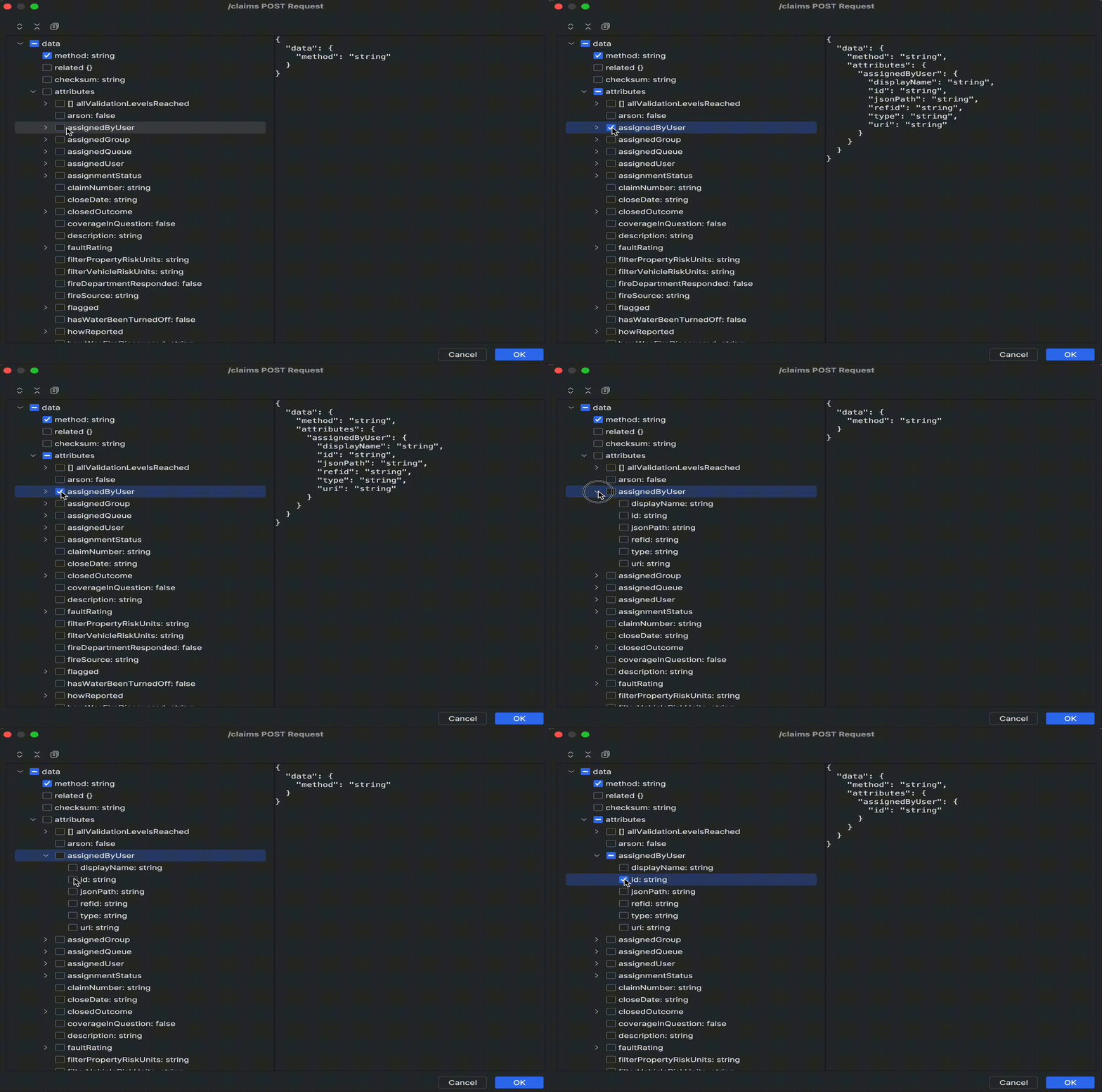
Once satisfied, cut and paste into a test or wherever you need the payload.
Create Mock From Spec
Export all data within an imported schema into a plain-vanilla JS file that can be used as a Karate mock. A detailed explanation and sample is at karate-oas-demo.
Use the Save Mock button at the bottom of the tool window.
Spec Impact Analysis
You can also export a plain-vanilla JS file that dumps all API and schema information in a format designed to make impact analysis easier using your existing IDE diff features. The format flattens all metadata into single lines.
Once exported, compare two of these files using IntelliJ's Compare With menu to view the diff intuitively.
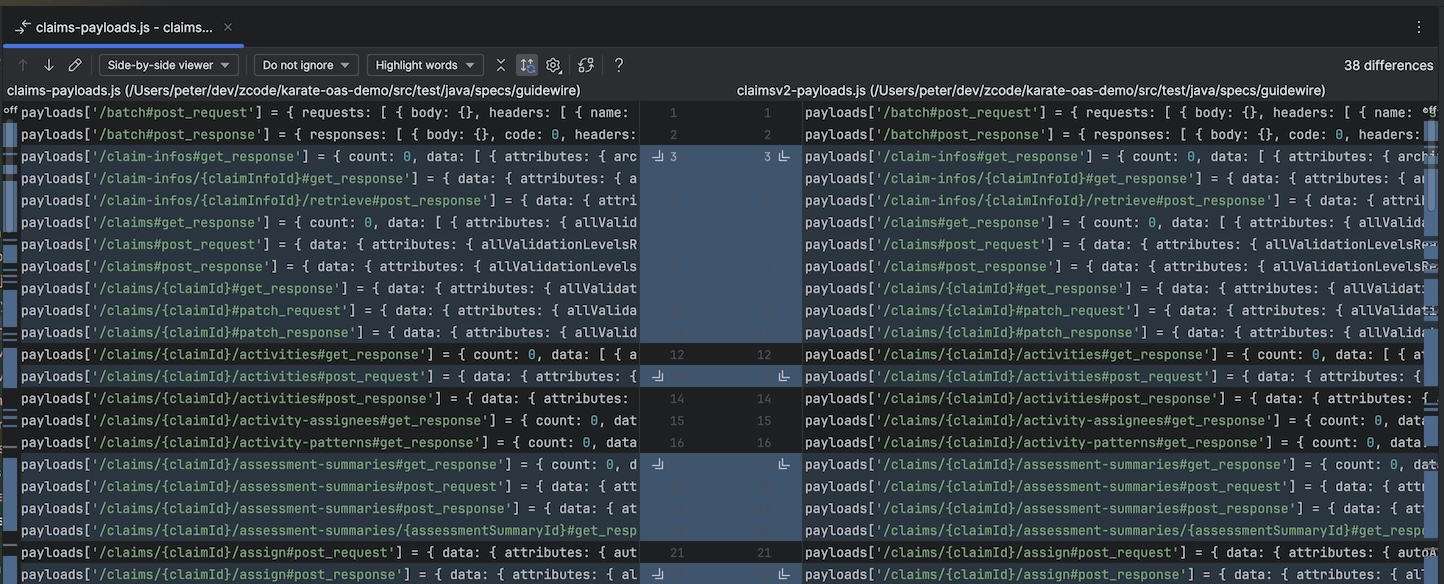
Scroll right to view differences even for very large API schemas.
Test Impact Analysis — coming soon: see which tests and mocks are affected by API changes.
Configuration
Workspace Settings
Use .idea/workspace.xml entries for team-wide plugin settings.
File Type Association
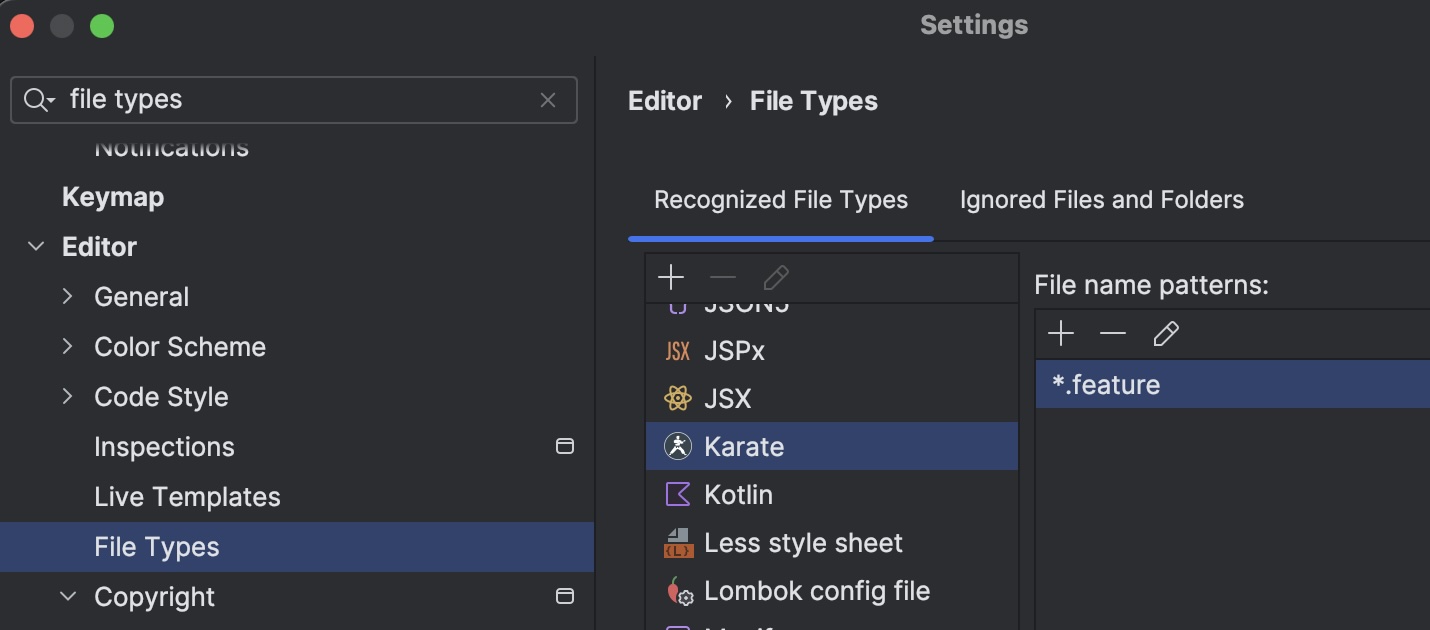
Ensure .feature files are associated with the Karate plugin in Settings → Editor → File Types.
Troubleshooting
If you don't see options to run a test, make sure the Karate icon appears for open .feature files in the editor and the project explorer. The Cucumber for Java plugin can conflict with Karate — disable it.
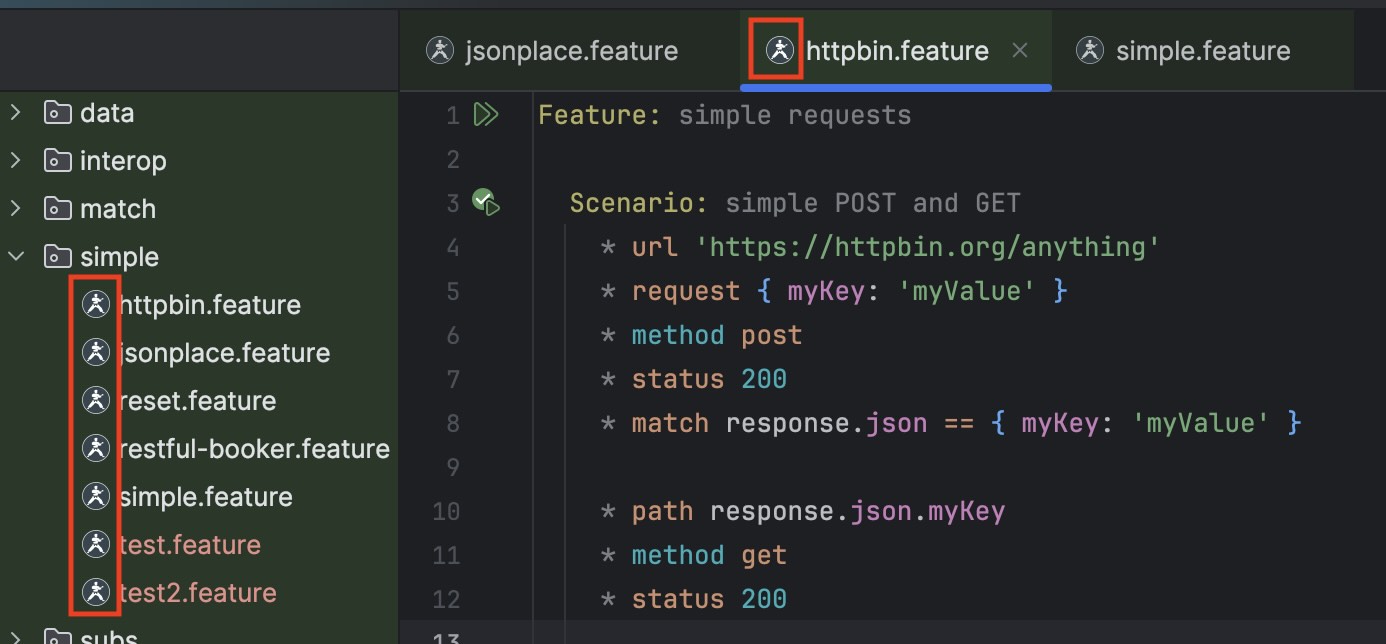
To verify the Karate plugin handles .feature files, go to Settings → Editor → File Types → Recognized File Types.
If you really need to mix Cucumber tests and Karate tests in the same workspace, see this Stack Overflow answer.
Resources
- Marketplace: JetBrains Marketplace
- Video Tutorial: Complete IntelliJ plugin demo
- Pricing: Karate Labs Pricing
- Issues: intellij-plugin on GitHub
- Support: Contact Karate Labs for enterprise support
Next Steps
- Install the plugin from JetBrains Marketplace
- Set up your run configurations for common scenarios
- Explore debugging features with a PRO license
- Try OpenAPI integration with an ENTERPRISE license
- Learn about VS Code integration